
Grimoires Era Squad Guide
A Squad gives you a long-term roster with a name, logo, member ranks, and a shared Reputation score in Grimoires Era.
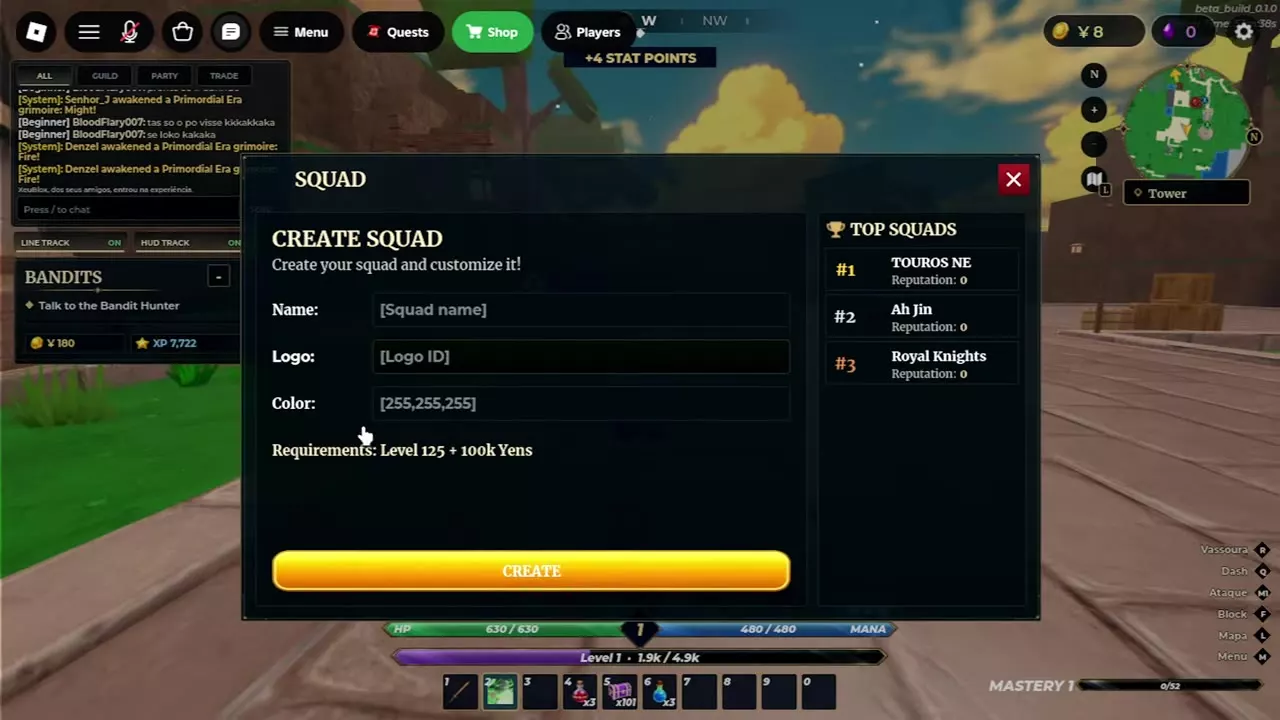
Reach Level 125, save 100,000 Yens, and open Guilds → Create Squad. You become Captain and take the first of 20 slots. Use Members to invite players and promote them from Member to Elite to Vice-Captain. Members’ Reputation gains and losses feed one shared balance that counts toward either Protectors or Villains.
Level 125 and 100,000 Yens
You need to be Level 125 or higher and pay 100,000 Yens to create a Squad. The roster starts at 1/20 because the creator becomes Captain and takes one slot, leaving room for 19 recruits.
Open Guilds in the character menu to reach the Squad screen. Squad membership is separate from exam-based Guild Hall membership, which has its own missions, Guild Points, and ranks.
Shared Reputation and Top Squads
Read Reputation in your Squad header to see the shared balance. When a member gains Reputation, the balance rises by that amount. When a member loses Reputation, the same balance falls. Each Squad appears on exactly one leaderboard, Protectors or Villains.
Top Squads sits beside the creation form or member roster. Scroll the panel to read each Squad's rank, name, and Reputation. Squads with the same Reputation can occupy different positions, so read the rank number as well as the score.
Defeating a Player Killer earns the member the HERO shield. If the kill awards Reputation, the gain also raises the Squad balance. Kills inside Mana Dungeon leave Reputation unchanged. Against the same player, only the first five kills in a 24-hour period can change Reputation.
Create and Configure a Squad
- Open Guilds from the character menu and go to Create Squad.
- Enter your Squad name. Use the Color field to set an RGB color in the format
[255,255,255]. Enter your logo ID in Logo when the field accepts input. If it says Coming Soon, continue to Create. - Select Create. The Members tab opens with your Captain row. The Squad header shows its name, logo, member count, and Reputation.
To rename your Squad or change its logo later, open Config, edit Name or Logo, and select the Apply button beside that field. Each Apply button displays 99.
Invite, Promote and Expand
Invite a player
- Open Guilds → Members and check that the Squad has an open slot.
- Enter a username or part of the player's name in Player Name. Match the @username in the suggestions before selecting the account, especially if display names look alike.
- Select Invite and look for the invitation-sent message. Once the player joins, their account appears on the roster and the member count rises. If the account is already on the roster, the game can show an already-in-Squad message.
Manage Squad roles
Scroll the Members roster to see each player's rank and Offline status. Select Promote on a Member's row to make them an Elite, or on an Elite's row to make them a Vice-Captain. Check the rank label on the row after each promotion.
| Role | Controls in the Captain's roster |
|---|---|
| Member | Promote, Kick |
| Elite | Promote, Demote, Kick |
| Vice-Captain | Demote, Kick |
| Captain | None |
Use Demote to lower an eligible player's rank or Kick to remove them. Abandon is a separate button at the bottom of the Squad page.
Buy more member slots
If the roster is full and you want to keep everyone, select +5 Slots at the top of the Squad page. Confirm the 99 Robux purchase in the Roblox prompt to add five member slots. The first purchase raises the starting capacity from 20 to 25.
Party Play and PvP Reputation
- Form a four-player Party for a temporary group that earns extra EXP when teammates stay close.
- Use the PvP and Reputation guide to check when PvP is active and how HERO and Player Killer status work.
- If you're saving for creation, earn and budget Yens and unlock Rich Adventurer by holding 100,000 Yens before you spend the creation fee.